Back to School Icon Gallery: A Practical Resource for Design Projects
Planning a back-to-school campaign, creating educational materials, or building a classroom resource library often requires a cohesive set of visual elements. The Back to School Icon - Gallery provides exactly that: a curated collection of vector icons designed to streamline your workflow from concept to final print. Whether you are a teacher preparing handouts, a marketer designing promotional flyers, or a small business owner creating branded stationery, having a reliable icon set saves time and ensures consistency across multiple projects.
Understanding the Back to School Icon - Gallery
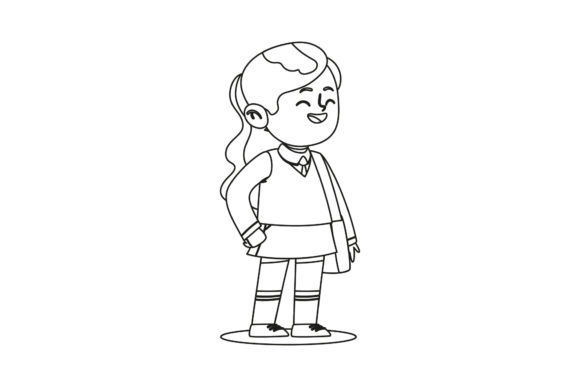
This gallery comprises multiple vector icon files—specifically, 100 fully resizable EPS10 files plus a high-resolution JPEG preview at 300 DPI. The icons are intentionally general enough to cover a wide range of school-related themes: books, pencils, apples, buses, graduation caps, and similar motifs. Because each icon is stored as an independent vector file, you can open, edit, and scale them without losing quality. This makes the gallery a versatile asset for both digital and printable projects.
What sets the Back to School Icon - Gallery apart is its focus on practicality. Instead of a single bundled file that might conflict with your existing design system, each icon is isolated, letting you pick exactly what you need and drop it into any project. The included JPEG preview helps you quickly browse and select icons before committing to a download or import.
Where the Gallery Fits Into Your Workflow
Consider the typical lifecycle of a design project: planning, creation, revision, and final output. The icon gallery can be used at every stage, though its real value becomes apparent during the creation and revision phases.
Before the Project Starts: Preparation and Planning
When you are outlining a back-to-school campaign or building a template library, having a known set of icons influences your layout decisions early. You can sketch wireframes using the JPEG previews to test placement and spacing. This avoids the common pitfall of designing around placeholder icons and then scrambling to find matching graphics later. By previewing the entire gallery, you can determine which icons will support your message—for instance, a school bus icon for transportation safety or a backpack icon for supply checklists.
During the Creative Process: Efficient Implementation
Once you move into a vector design tool such as Adobe Illustrator, CorelDRAW, or Affinity Designer, the EPS10 files open directly into editable layers. Because each icon is fully resizable, you can drag a graduation cap onto a poster and resize it without worrying about pixelation. The Back to School Icon - Gallery interacts seamlessly with these tools because EPS10 is a widely supported vector format. You can also combine icons, change colors, or add effects like shadows and strokes to match your brand guidelines. The workflow becomes: import an EPS file, adjust, and place. That is it.
After the Design Is Finalized: Output and Flexibility
When you export your project for print or web, the vector nature ensures the icons remain crisp at any resolution. The JPEG preview serves as a handy reference when you need to quickly identify which icon file corresponds to a particular visual—especially useful if you are collaborating with a team or passing files to a printer. The gallery also supports future revisions: if you need to tweak an icon for a new campaign next year, you already have the source file ready.
Practical Implementation Tips for Different Audiences
The Back to School Icon - Gallery is not limited to graphic designers. Here are how various professionals can integrate it into their daily routines.
For Educators and Classroom Creators
Teachers can use these icons to build worksheets, bulletin board decorations, labels, or parent newsletters. Because each file is independent, you can drop a single icon into a Word document or Google Slides presentation without heavy editing. A tip: use the JPEG preview to create a quick visual index for your classroom center labels—print it out and laminate it for reuse.
For Marketers and Small Business Owners
If you run a tutoring service, a bookstore, or a school supply shop, consistent iconography reinforces brand recognition. The vector files allow you to adjust colors to match your brand palette. Use the school bus icon on your website header, then reuse the same file on a promotional flyer. The EPS10 format also holds up well for large format prints (banners or yard signs) because the math behind the curves scales perfectly.
For Freelancers and Designers
When a client requests a quick back-to-school layout, having a pre-made icon gallery cuts your production time. In a typical workflow, you might create a mood board using the JPEG preview, then drag the selected EPS files into your project. Because the icons are already vector, you can apply consistent stroke weights and corner rounding across the set to maintain visual harmony. This gallery works especially well when you need icons for infographics, app mockups, or printable planner inserts.
Organization and Compatibility: Making the Gallery Work for You
Effective use of the Back to School Icon - Gallery starts with proper file management. The 100 EPS files and the JPEG preview come as separate items. I recommend creating a dedicated folder on your computer or cloud storage, then renaming files according to your own naming convention (e.g., “school-bus.eps”, “apple.eps”). This way, you can quickly locate a specific icon without opening each file. The JPEG preview acts as a visual cheat sheet—keep it open in your image viewer while you work to speed up browsing.
Consistency Across Projects
One challenge with using multiple icon sources is that styles vary—some icons might be outlined, others filled, or have different line thicknesses. The gallery’s uniform design approach means you get visual consistency from the start. If you need to adapt an icon for a different purpose, you can scale, rotate, or recolor it while still maintaining the overall look. For example, if you are creating a series of printable flashcards, you can use the same pencil icon on every card but vary its size and color to indicate difficulty levels.
Quality Control in Print and Digital
Because the files are EPS10, they are compatible with professional printing workflows. When you send a file to a commercial printer, vector icons reduce the risk of rasterization issues. The included JPEG preview at 300 DPI serves as a proofing tool—you can check that all icons appear correctly before committing to a print run. For digital use, scaling down is effortless; you can export icons as PNGs at any resolution without losing sharpness.
Long-Term Use and Maintenance
An icon gallery is not a one-time purchase; it becomes part of your creative library. Over time, you may reuse certain icons repeatedly. Track which icons you use most often by keeping a simple log or by tagging files in your operating system. If you later create a new set of materials (say, a back-to-school checklist), you can revisit the gallery and incorporate familiar visuals without starting from scratch. The EPS10 format is future-proof—it opens in most modern vector editors, and because it is a standard, you can rely on it even as software updates.
Another practical observation: because the gallery includes 100 files, you have enough variety to avoid repetition in larger projects. For a multi-page school newsletter, you can assign different icons to each section. This keeps the layout engaging while maintaining a unified theme. The high-res JPEG preview is also useful for archiving: place it in a readme file or on your intranet so team members can quickly see what is available without opening every EPS file.
Putting It All Together: A Workflow Example
Imagine you are a freelancer designing a back-to-school flyer and matching social media graphics for a local tutoring center. Here is a step-by-step integration using the Back to School Icon - Gallery:
- Preview and select: Open the JPEG preview and identify six icons that match the flyer’s theme—books, pencil, graduation cap, backpack, bus, and a star (for achievement).
- Import and edit: Open the corresponding EPS files in Illustrator. Adjust the stroke weight to 2pt for consistency. Change the color to the client’s brand green using the vector fill options.
- Layout: Place the icons near headers and bullet points. Because they are vector, you can scale the bus icon to fill a sidebar without quality loss.
- Export for print: Save the final flyer as a PDF. Send the print-ready file to the client. Keep the EPS files archived in your project folder.
- Repurpose for social media: Copy the same icons into a square Canvas format. Resize and export as PNG. The high-res JPEG preview helps you remember which icons you used, so you can quickly grab them again.
This process demonstrates how the gallery fits naturally into a typical design pipeline, reducing decision fatigue and ensuring a consistent visual identity across media.
Final Observations on Usability and Value
The Back to School Icon - Gallery is more than a collection of pretty pictures; it is a resource that supports efficient planning, smooth creation, and reliable output. By delivering icons as separate EPS10 files plus a high-res JPEG preview, the provider removes common friction points: no need to ungroup complex bundles, no pixelated raster exports, and no style mismatches. For anyone who regularly produces school-related content—whether for a classroom, a business, or a client—having this gallery on hand means you spend less time hunting for the right icon and more time building great materials. Its practical value lies in its simplicity and compatibility with existing workflows.